Admin Console Overview#
In the admin console, you will see the following tabs: Queries, Databases, and Golden SQL. This document walks through the layout and purpose of each tab.
Queries Tab#
This UI shows all of the questions asked through the Slackbot. For each question, the tab displays:
Query ID: The identifier for the question
User: The name of the person who asked the question
Question: The question asked
Answer: The natural language answer generated by the tool
Time: When the question was asked
Status: The current status of the question
Verified: Checked by a data admin, query verified, response sent to user
High Confidence / Medium Confidence / Low Confidence: No response sent, needs validation by data admin
SQL Error: SQL query failed to generate due to error, please contact your Dataherald technical support
Once you click on a row in the displayed table, the following view opens up.

Header: Question asked, User that asked it, and the Time of the request
Slack response panel: Contains the NL response generated to the user’s question.
SQL text editor: Generated SQL query, and a Process sub-tab outlining the logic of the AI agent
Results panel: Result of the SQL query
Databases Tab#
This tab displays information about the database connection that Dataherald AI is currently using, along with the tables it has scanned for use to answer user’s questions.
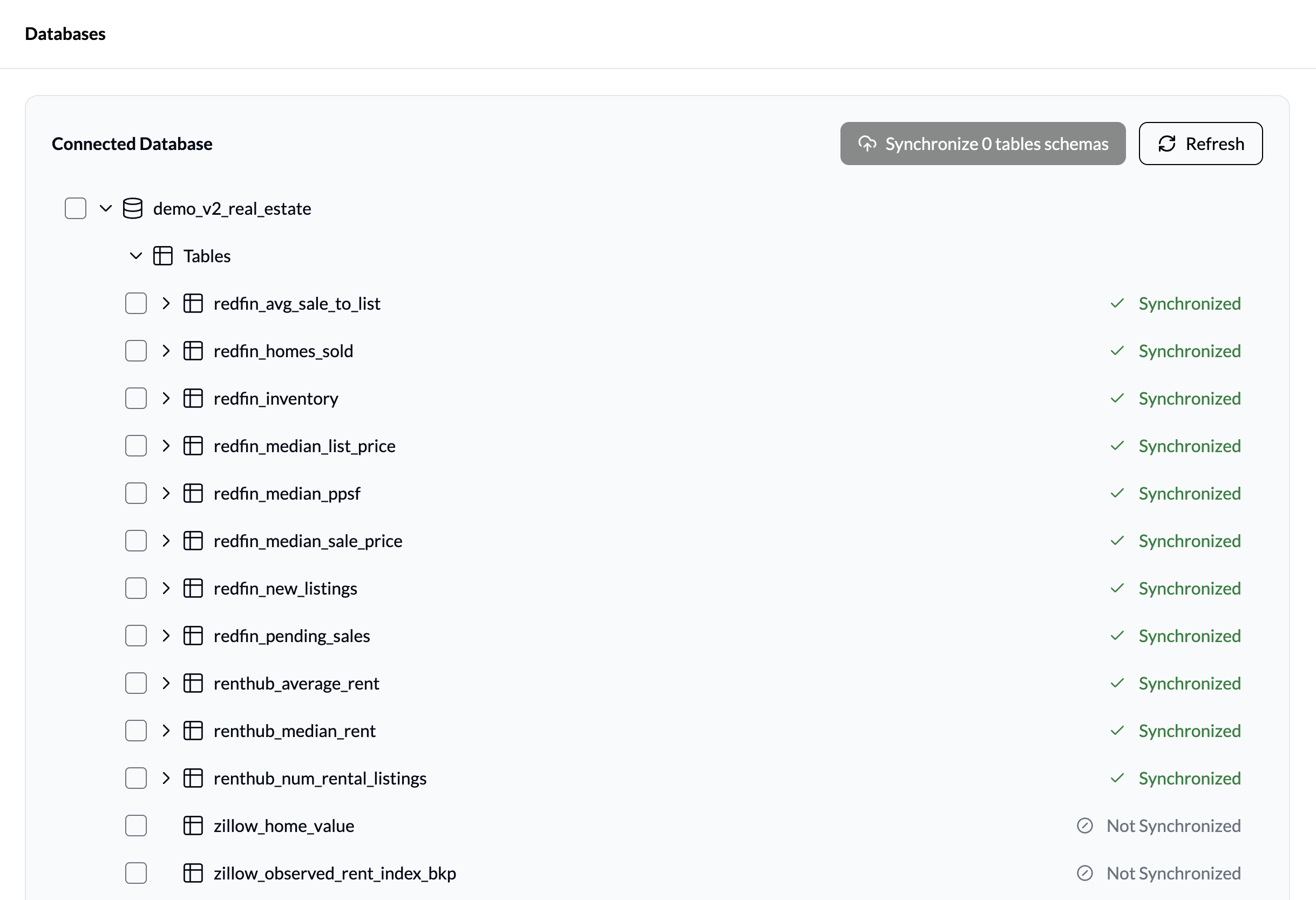
To add a database connection, follow the instructions in Add a Database.
Golden SQL Tab#
All of the questions with verified, or “golden”, SQL queries are shown in this tab. For each verified query, the tab displays:
ID: The identifier for the golden query (separate from the Query ID)
Question: The question asked
SQL Query: The verified query used to answer the question
Time added: When the query was verified by the data admin
Source: Link to the query in the Queries tab if it’s verified through the app in response to a user question, otherwise it’ll say “User Upload”
